
How to Download MP3 Songs from Tubidy (Step-by-Step Guide)
A lot of people still download music. Not everyone wants to depend on streaming apps all the time. The Internet isn’t always stable, mobile data gets expensive, and sometimes you just want your favorite songs saved on your phone.
That’s why websites like Tubidy are still searched so much. If you’ve never used it before, or if you’re confused about how the download works, this page will walk you through it without making things complicated.
Just one small reminder before you begin. Only download music that you’re legally allowed to use in your country. Rules are different everywhere.
What You Actually Need
You don’t need any special software or technical skills.
A decent internet connection helps. Even though MP3 files are small, a weak signal can interrupt the download and you end up starting again.
You also need a browser. Chrome, Safari, Firefox, or Samsung Internet all work fine. Tubidy runs directly in the browser, so no app installation is required. If the site feels slow or doesn’t load properly, updating your browser usually fixes it.
That’s really it.
Also read: Tubidy MP3 and MP4 downloader
Downloading MP3 from Tubidy Step by Step
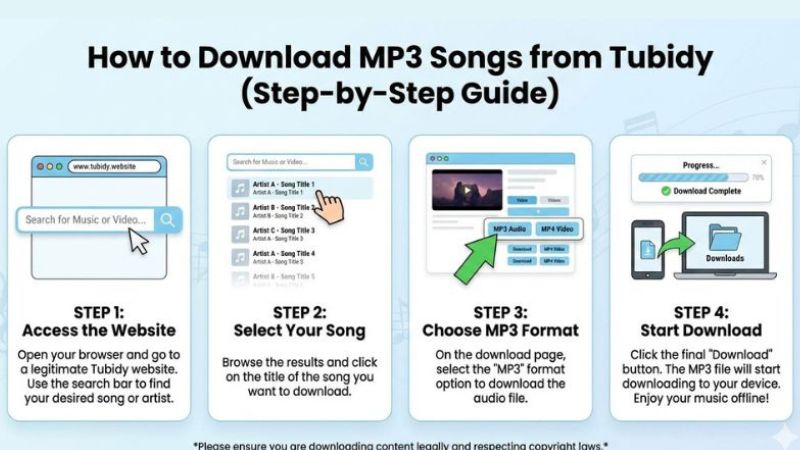
Open your browser and go to tubidy.ke. You’ll see a search box.
Type the song name, artist, or even a few lyrics if that’s all you remember. Tap search and wait a second for the results to appear.
You’ll probably see several options. Some will be video files, some audio. Make sure you tap the one marked MP3 if you only want the song and not the video.
After that, Tubidy shows a few quality choices. Lower quality uses less storage but the sound isn’t great. Higher quality sounds better but takes more space. Pick what works for you.
Tap the download button. Your browser may ask you to confirm. Once you approve, the file starts downloading.
Done.
On Android Phones
Android makes this easy since it supports direct downloads.
- Open your browser
- Visit tubidy.ke
- Search for the song
- Select MP3
- Choose the quality
- Tap Download
When it finishes, the song usually appears in your Downloads folder or music app.
On iPhone
iPhones work a little differently, but it still works.
- Open Safari
- Go to tubidy.ke
- Search your song
- Tap MP3
- Select quality
- Tap Download
The file normally saves inside the Files app under Downloads.
Also read: is Tubidy safe for MP3 downloads
Where Your Song Goes After Download
If you can’t find your song, don’t panic. It happens often.
- On Android, check the File Manager and open the Downloads folder.
- On iPhone, open the Files app and look in Downloads.
- On Windows or Mac, it’s usually saved in the main Downloads folder.
If it still doesn’t show up, open your browser’s download history and tap the file from there.
Common Problems People Run Into
Sometimes the download button doesn’t respond. This can happen if a pop-up blocker is active or the page didn’t load properly. Refreshing the page or turning off the blocker usually fixes it.
If the download is slow or stuck, the internet connection might be weak or the site may be busy. Switching to Wi-Fi or trying again later helps most of the time.
If the sound quality is bad, you probably picked a low bitrate. Just download it again and choose a higher option. Nothing complicated.
Final Thoughts
Using Tubidy MP3 doesn’t take much effort once you’ve done it once or twice. Search the song, choose MP3, pick the quality, and download. That’s all there is to it.
As long as you follow copyright rules and download responsibly, Tubidy can be useful when you want offline music without installing extra apps.